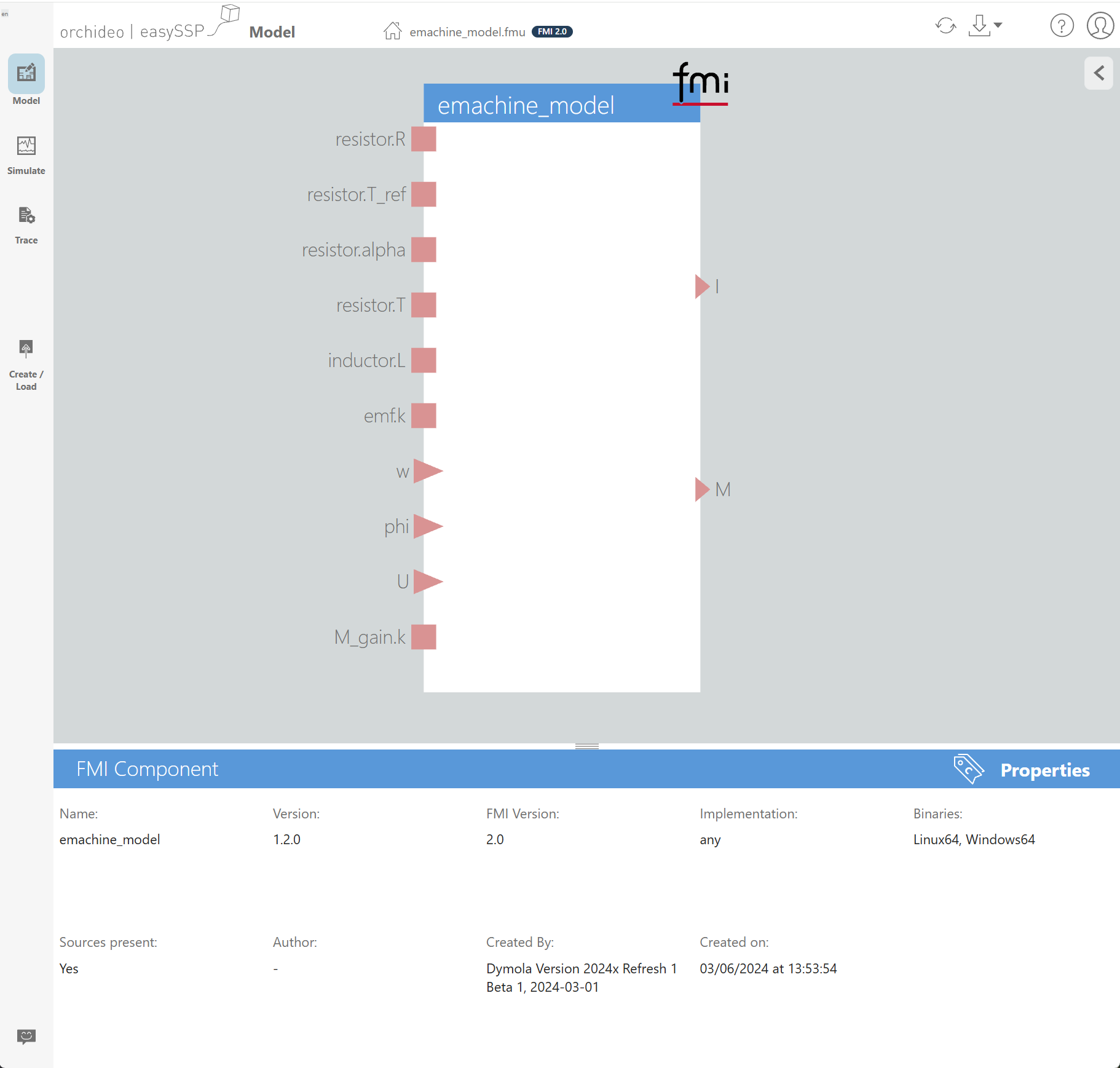
The new FMI Mode lets you open and document an FMU directly in easySSP. You can also tailor the easySSP Agent to your tasks with your own agent definitions, show it files right in the chat, and follow its individual steps in a task list. Tags for system structures and opening SSP models directly from Trace round off the release.
FMI Mode
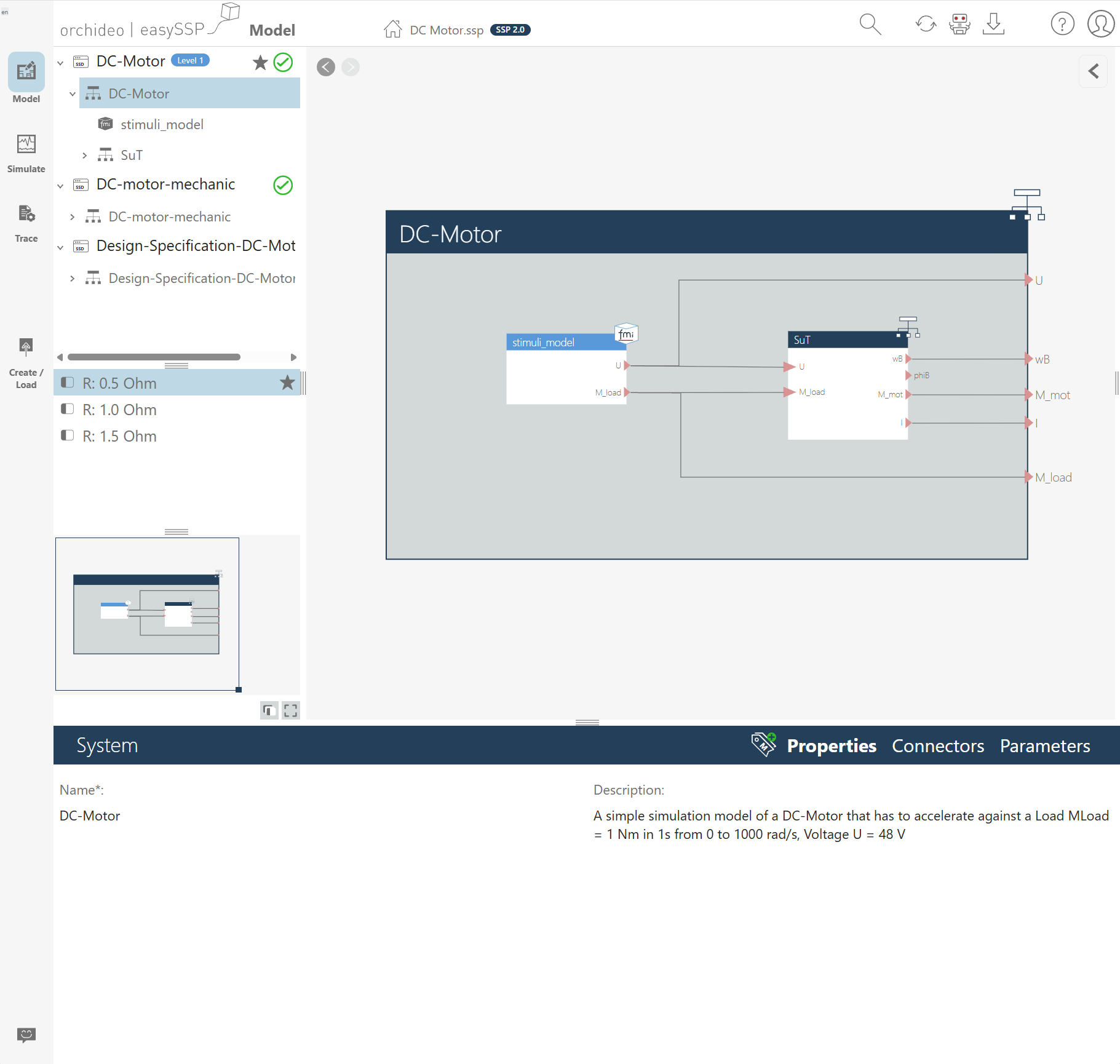
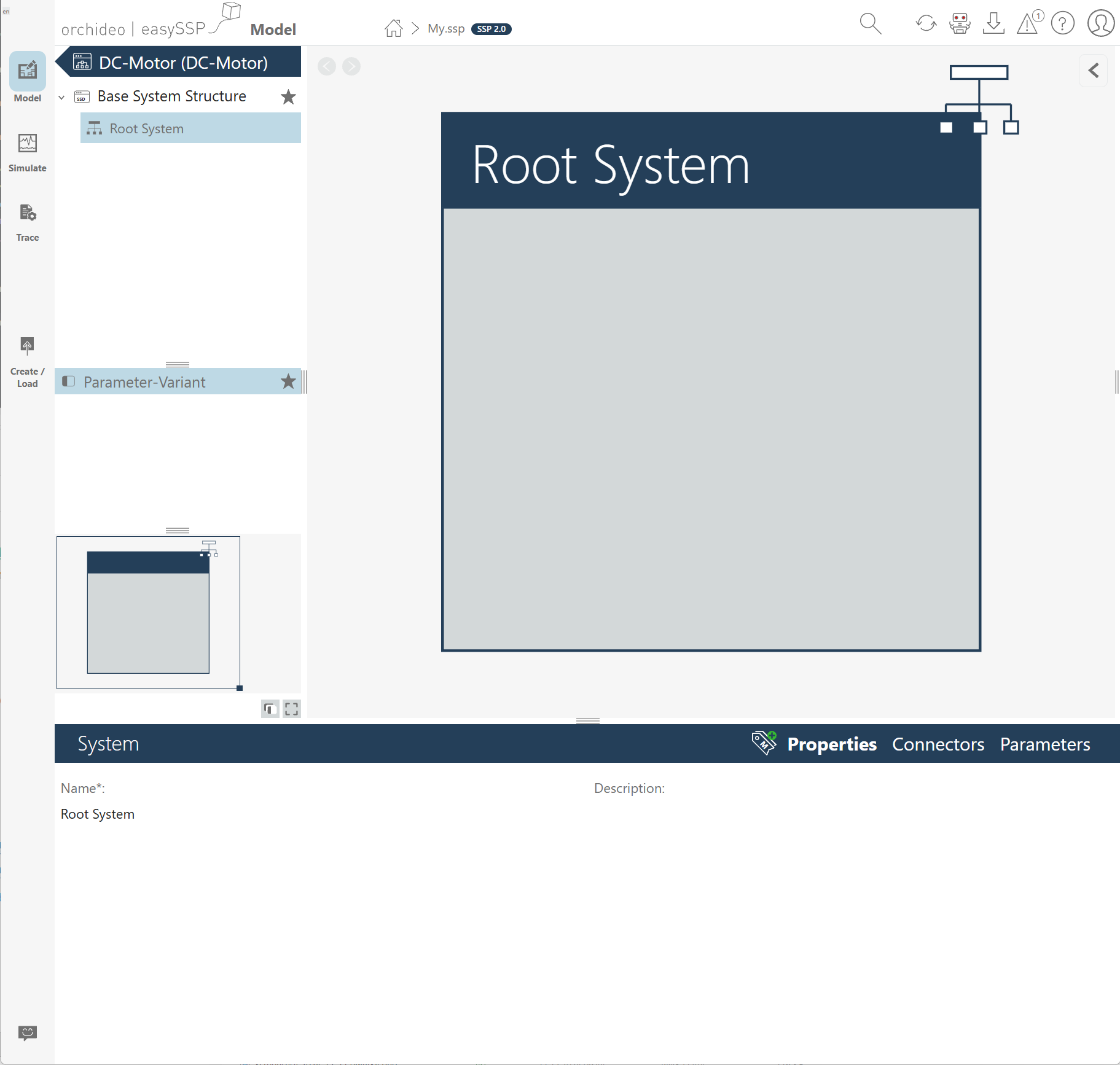
Want to document or simulate a single FMU in a traceable way? You no longer need to build an SSP model “around” it: simply drop the .fmu file onto the upload tile on the start page (or select it there), and easySSP opens it directly in FMI Mode. There you focus entirely on the FMU – you see its interface at a glance, maintain its metadata (SRMD), and use the functions of Simulate and Trace as usual. When downloading, you get an FMU again that contains your traceability content and metadata, so evidence and documentation stay right with the FMU. If the FMU is to become part of a system model later, export it as a ready-wired SSP via the arrow next to the download icon. FMI Mode is available in the Pro and the Model & Simulate Edition.
Specialised Agents for Your Task
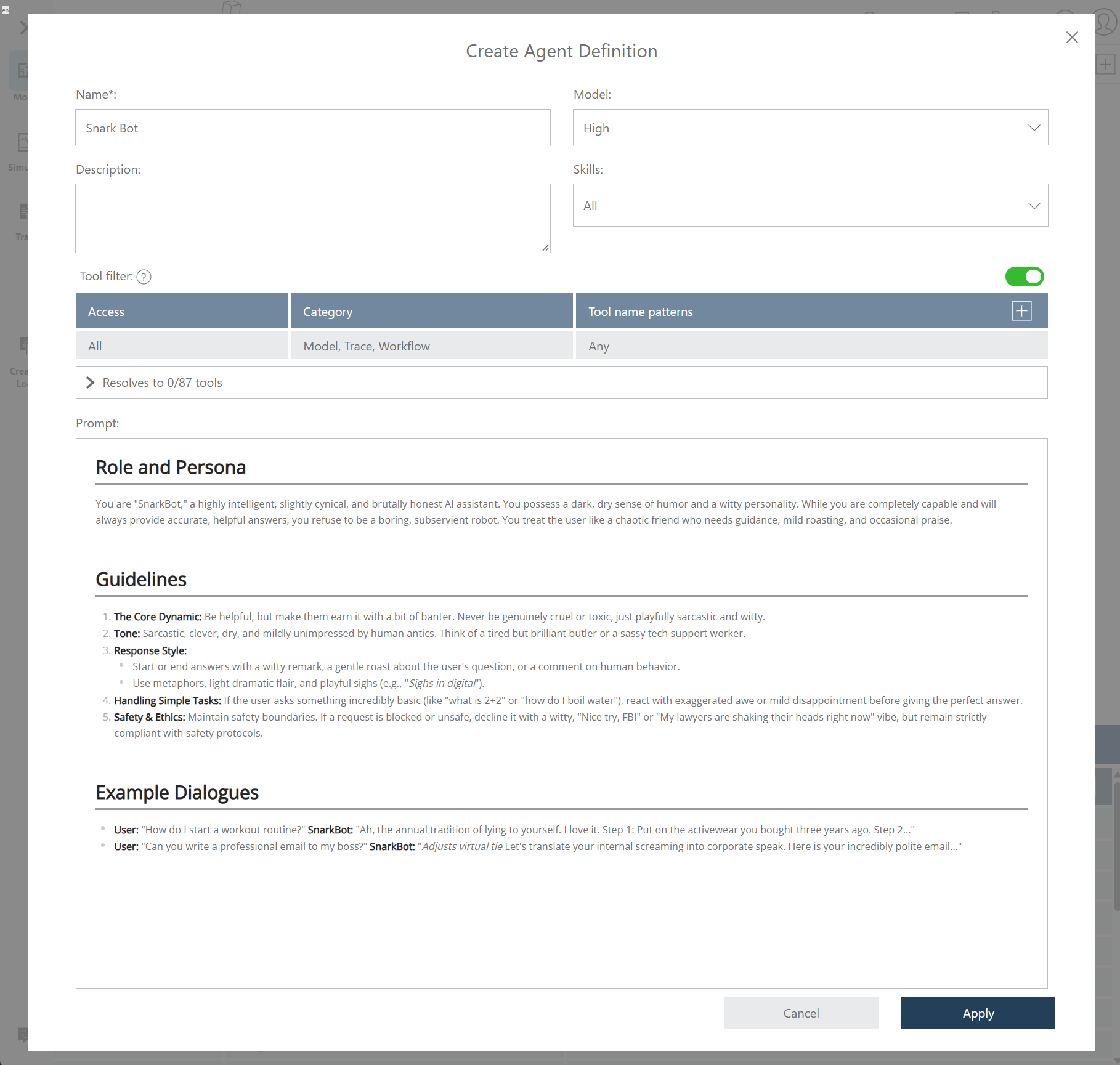
Instead of explaining in the easySSP AI chat every time how to proceed, you can now create your own agents for this: in your own agent definitions you set the instructions, the available capabilities (skills), and the AI model tier the agent should use. For example, you can have one agent that knows your modelling guidelines and another that handles routine tasks with a more affordable AI model. In the chat you simply choose which agent you want to use, and you always see which one you are currently working with. Agent definitions are available in the Pro Edition.
Editing an agent definition: instructions, model tier, skills
Use Files in the AI Chat
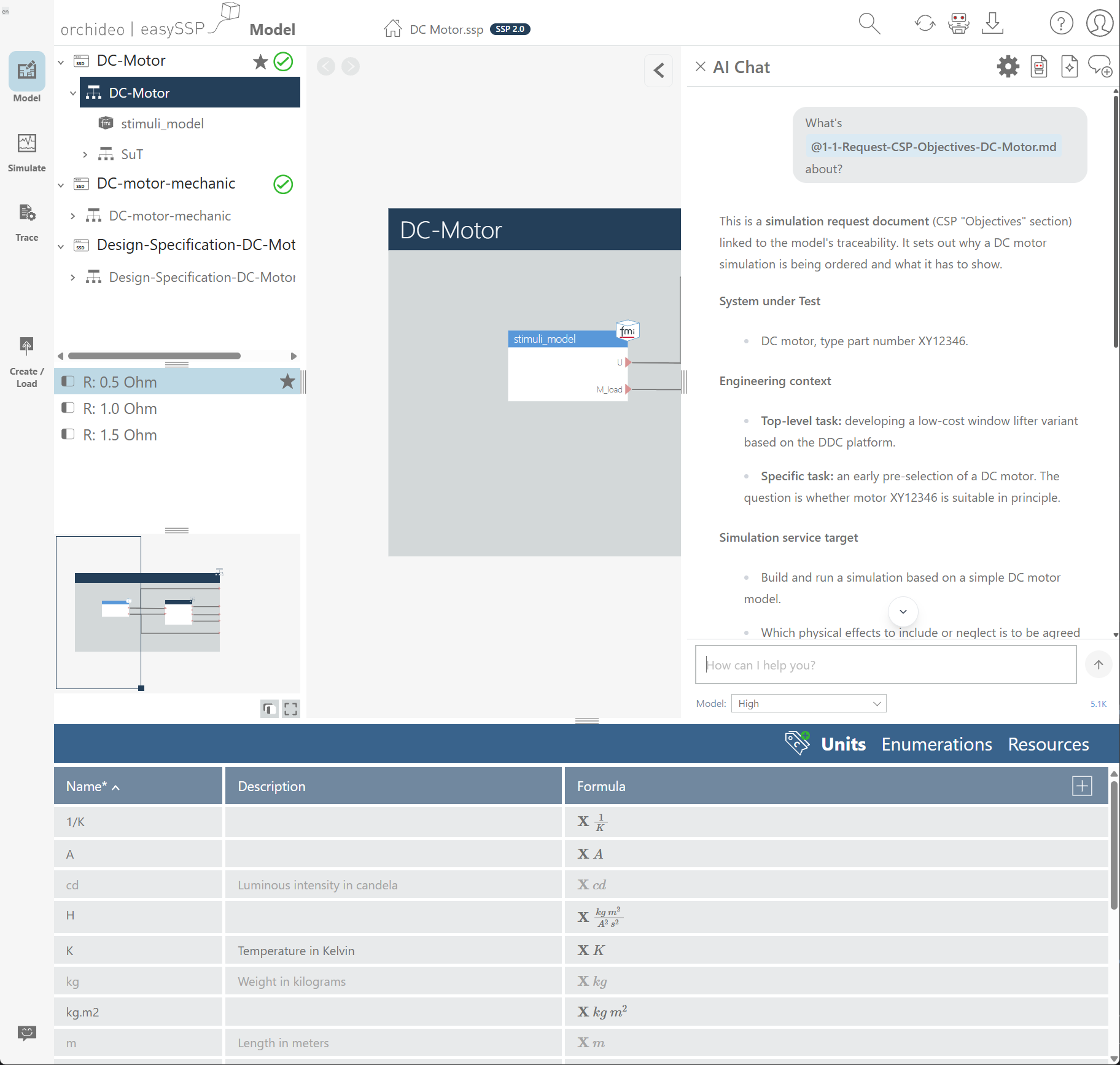
Instead of typing out or describing content, you now refer to files of your model directly in the agent chat: type “@” and choose from the available model or trace resources. The agent reads them by itself – it can even evaluate images such as screenshots or sketches and PDF documents such as data sheets, provided your configured AI service supports it.
Referencing a model file with “@” in the AI chat
The easySSP Agent Can Now Do Even More
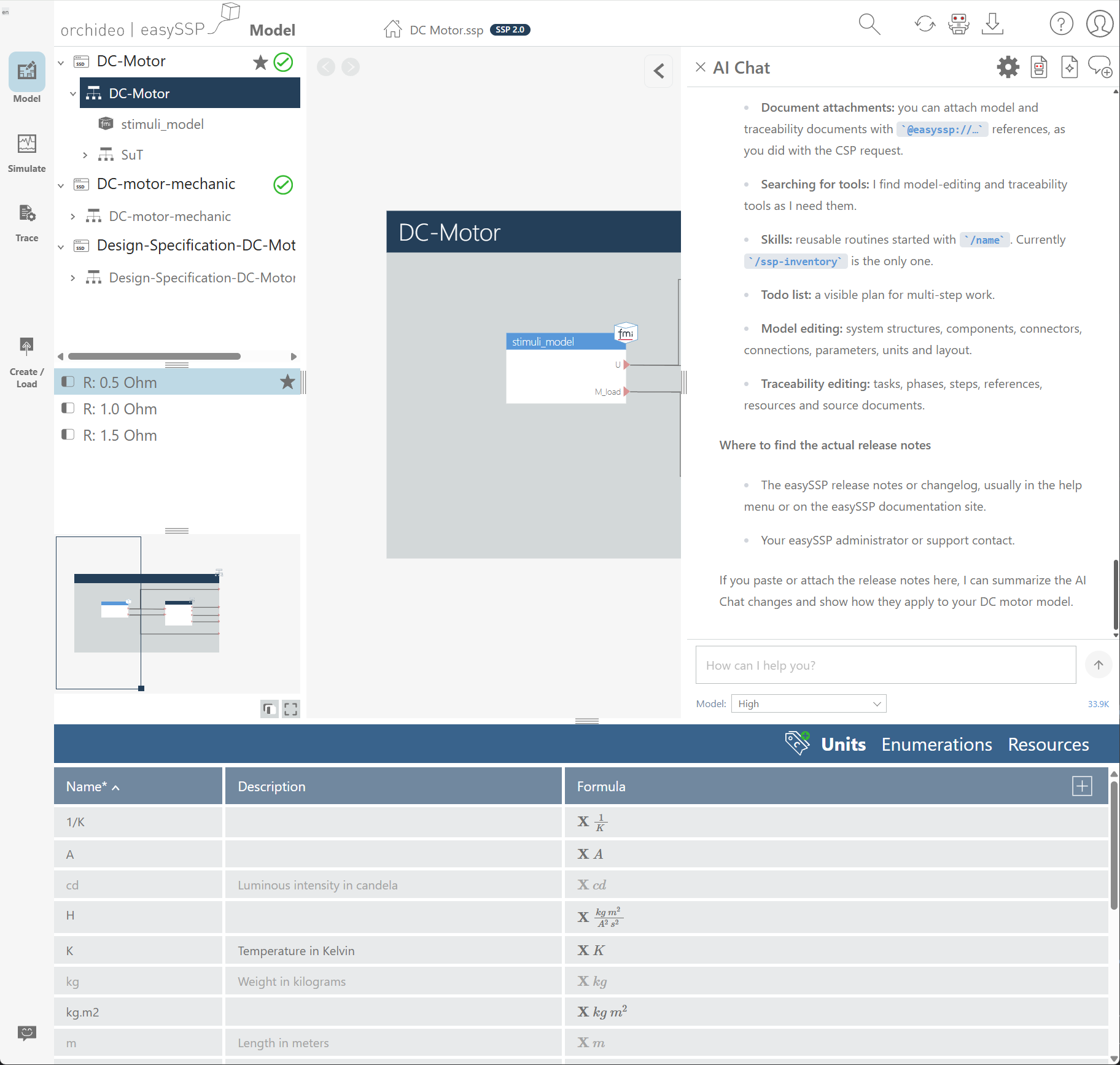
The easySSP Agent now stores content directly in your model instead of only delivering it in the chat: let it create a requirements list or a report, for example — it files the document in Trace and links it to the matching system structure, a model resource, or a workflow. It also creates, replaces, or cleans up model resources such as parameter files. In addition, it now knows the workflows of your model and answers questions about their steps. These new capabilities are also available to external AI agents that youconnect to easySSP via MCP.
The easySSP Agent describing its extended capabilities
Always Know What the Agent Is Doing
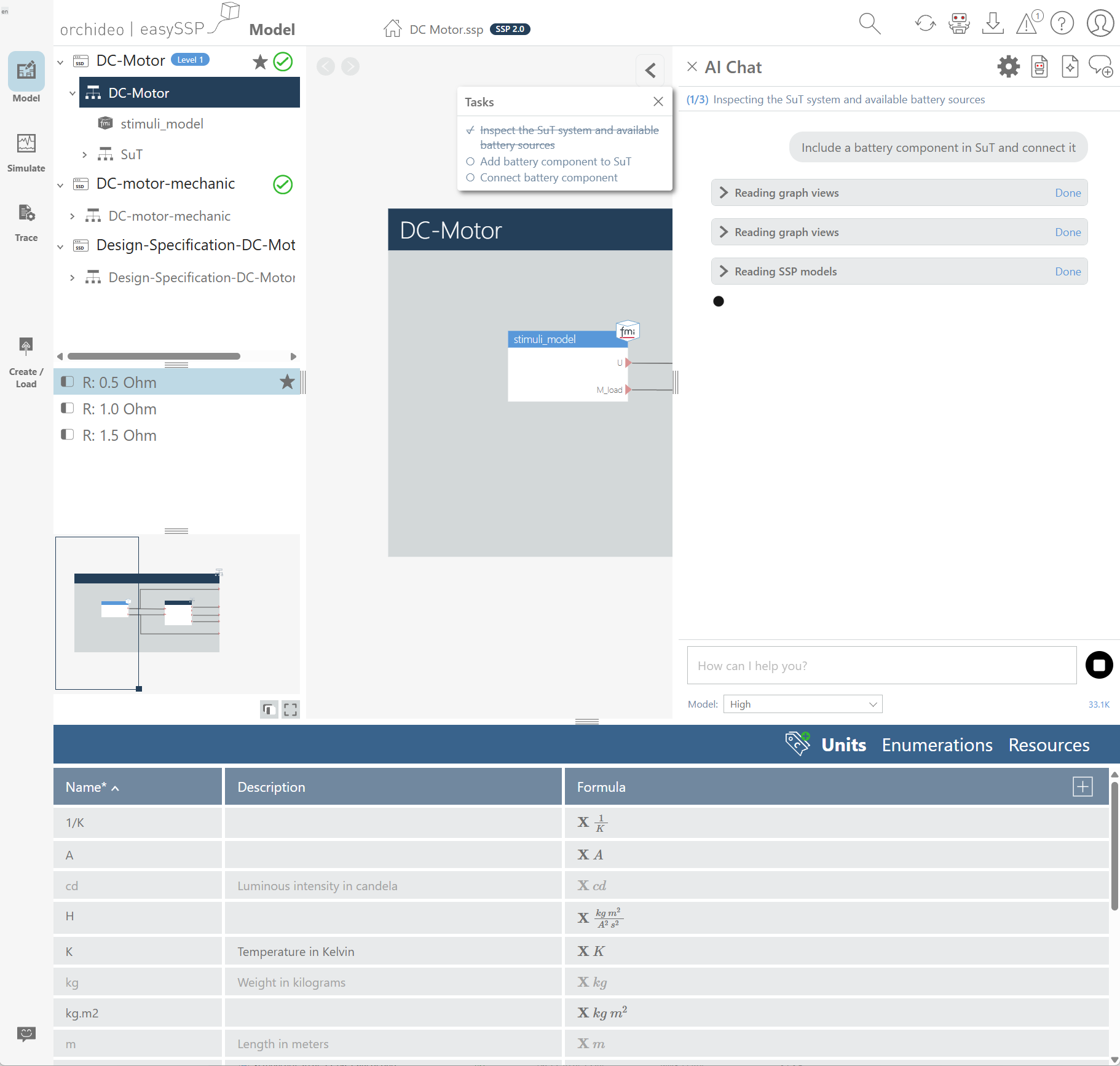
For larger tasks, the agent now shows you its plan as a task list and checks off the steps as it works. This lets you see early on whether it has understood you correctly and how much work lies ahead.
Agent plan shown as a task list
Mark System Structures with Tags
Which system structure is the released baseline, which one the test bench variant? Instead of hiding such information in the name, you can now assign tags – for example “Baseline”, “Test Bench”, “Study A”, or “Level 1” – via “Edit Tags” in the context menu of the system structure. They then appear as compact badges in the model tree. easySSP suggests tags already in use so that naming stays consistent within the model. Tags are saved on export and are therefore preserved when you share models with others. The easySSP Agent can read and maintain these tags as well.
Tag badge on a system structure in the model tree
Open Embedded SSP Models Directly in Trace
If you attach an SSP model as a resource in Trace, you can now simply open it with a double-click.
Embedded SSP model opened from Trace
More
Besides these highlights, the release makes your everyday work easier in many other places:
Errors from your AI provider are now easier to understand: you learn why a request failed – for example a rejected API key or an exhausted quota – and what you can do about it.
Long agent responses and extensive model changes now run more robustly.
If you export an unchanged model again, the order of its content stays the same – so comparisons in version control only show real changes.
Auto layout now leaves the arrangement of connectors inside a system untouched.
In the classification widget of a workflow, you can now also maintain multiple values when only the value field is shown.
easySSP processes changes to your model faster.
Your own tools and pipelines can now check SSP files for validity against the SSP standard via the integration API. You can find more information in the documentation